


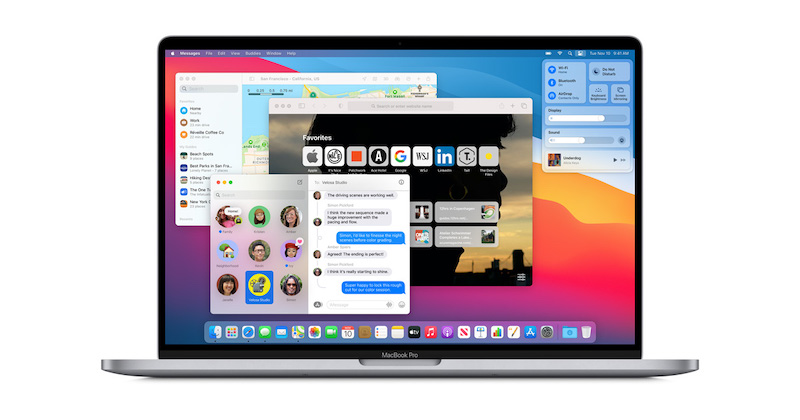
Has your Mac become unbelievably slow lately? While the laptops from Apple promise the fastest user experience out there, they can slow down for many reasons. In this post, we’ve put together some steps to make your Mac faster and as good as new. Let’s dive in!
Restart your Mac
We all love that we can use our Macs immediately after we open the lid, but sometimes it may cause them to slow down. So, if it’s been weeks (or even months) since you last shut down your Mac and gave it a proper restart, you should try and see if it increases its performance. Restarting your Mac ends latent processes that might bog it down. Chances are that’s all you’ll have to do to inject more speed to your Mac.
Stick to a few open apps
Too many applications running at the same time consume a lot of RAM, slowing your Mac down. If you want to enjoy multiple open apps, you should consider upgrading your RAM. Otherwise, you’ll have to limit the number of applications you have open to take the pressure off RAM and increase your device’s performance.
Reduce the browser clutter
Similar to your running apps, your browser tabs are also among the biggest RAM consumers, given that each new open tab means a new process for your Mac’s memory to handle. Thus, keeping too many tabs open can affect your Mac’s performance. Fortunately, you can get rid of the problem by closing the unneeded tabs or adding them to Bookmarks, or using the Reading List feature in Chrome and Safari.
Clean your Mac from unused applications
By uninstalling apps you don’t use, you maintain a healthy level of disk space on your Mac. Performance issues aside, there’s a possibility you’ll run into the notorious “Startup Disk is Almost Full” message eventually, which means you need to clear space on your hard drive so that your Mac can function without a hitch. Below are the steps to remove different kinds of apps:
- How to remove Mac App Store apps: You can uninstall the apps you’ve downloaded from the official Apple store by going to the Dock – Launchpad. Here you’ll be able to look through the list of apps you have, open and arrange them, as well as remove your unused ones. After you’ve chosen the app you want to part ways with, click on its icon and hold until it starts to move and an X sign appears. All you need to do is to click on it and confirm the action.
- How to remove apps outside Launchpad: Locate an app via Finder in the Dock. Then, you should search for the app manually or dive into your Applications folder to locate the app you no longer need. Then, find its uninstaller (usually located in the app’s file), and launch it to remove the app. If an app doesn’t have an uninstaller, click on the app’s icon and move it to the Bin in your Dock. Then, empty the Bin to remove the app altogether.
Unload your Dock
The more apps your Dock has, the more resources it consumes. While it’s quick and easy to access apps from your desktop, having a bunch of apps on your Dock may reduce your Mac’s performance. With this in mind, consider removing some of them. Don’t worry though, they won’t go anywhere, as you still will be able to access them via Finder. You can go about this in the following way: Check if an app (or a document) you want to remove from Dock is open and if it is, then Quit it. Then, click on the app and drag it to the desktop. Once it’s outside your Dock, you can let go. Then, the app will disappear from the Dock.
Finally, upgrade your Mac’s memory
Out of all methods we’ve described, upgrading your memory is probably by far the most effective way to increase your Mac’s performance. If your Mac fails to meet your needs in terms of speed and multiple apps or tabs usage, consider expanding its memory capabilities with a memory module. Not only does it help speed up your apps but also ushers in a faster multitasking experience.
Hopefully, our tips have helped you squeeze more performance out of your Mac laptop.